
How Too Many Photos works
Your priorities guide the AI. Small rounds make review manageable. Apple Photos stays your library.
Too Many Photos™ combines these three parts into one workflow: choose a familiar album, let the AI suggest keepers, and review its first pass with the final decisions in your hands.
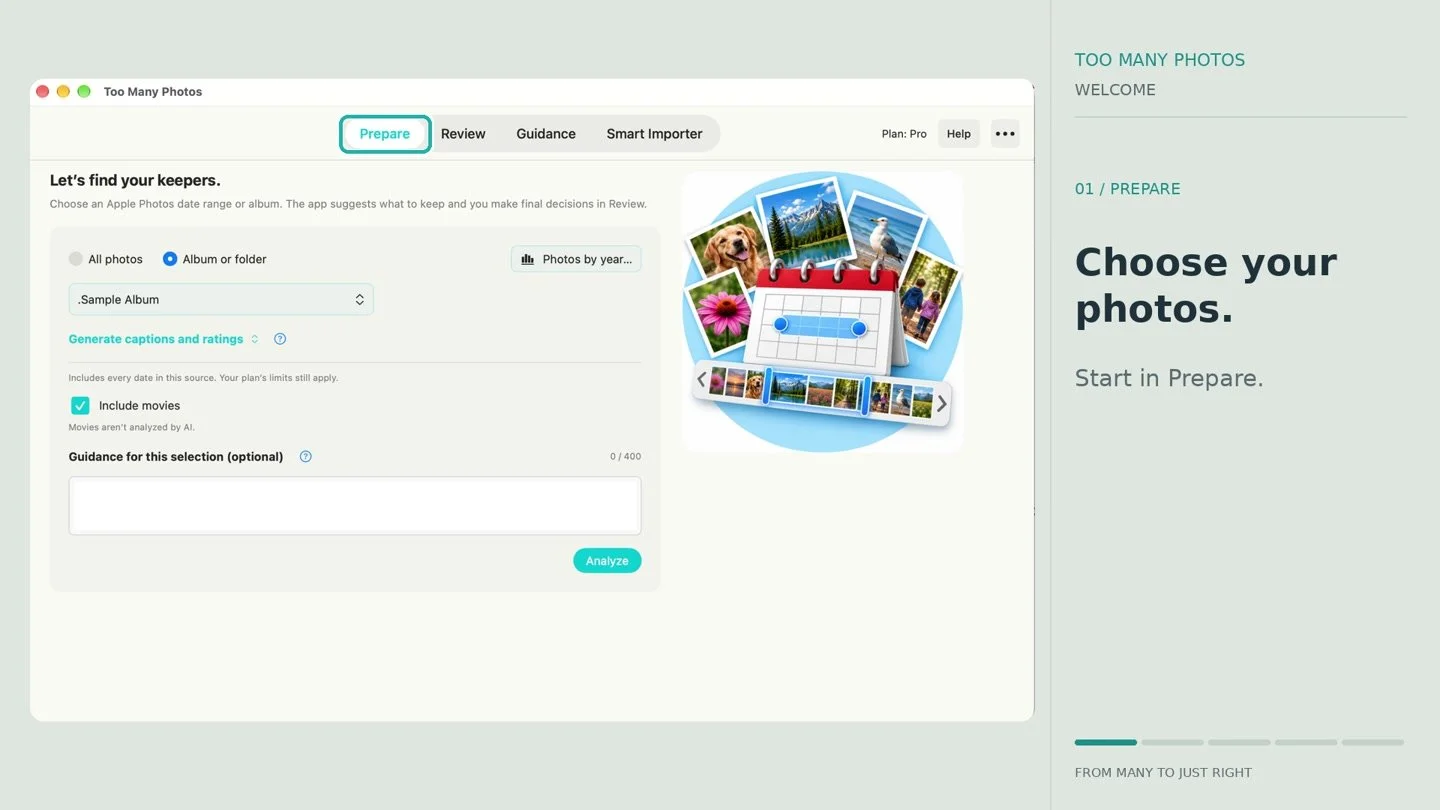
1. Start in Prepare.
Choose an Apple Photos date range, album, or folder. A familiar album is a good place to begin. Your plan determines which photos are available to process.
2. Tell the AI what matters.
Use Guidance to describe what you value in plain English. For example: “Favor family interactions, even if focus is imperfect. Keep fewer repeated scenery shots.” You can also add guidance for a particular selection in Prepare.
3. Let the AI make a first pass.
Choose Analyze. Too Many Photos considers your guidance and related photos, then prepares suggested Keep/Delete decisions in manageable rounds. Enable captions and ratings if you want additional context.
Rounds normally target around 50 photos. Preparation time depends on the selection, settings, device, and connection.
4. Open Review in Too Many Photos.
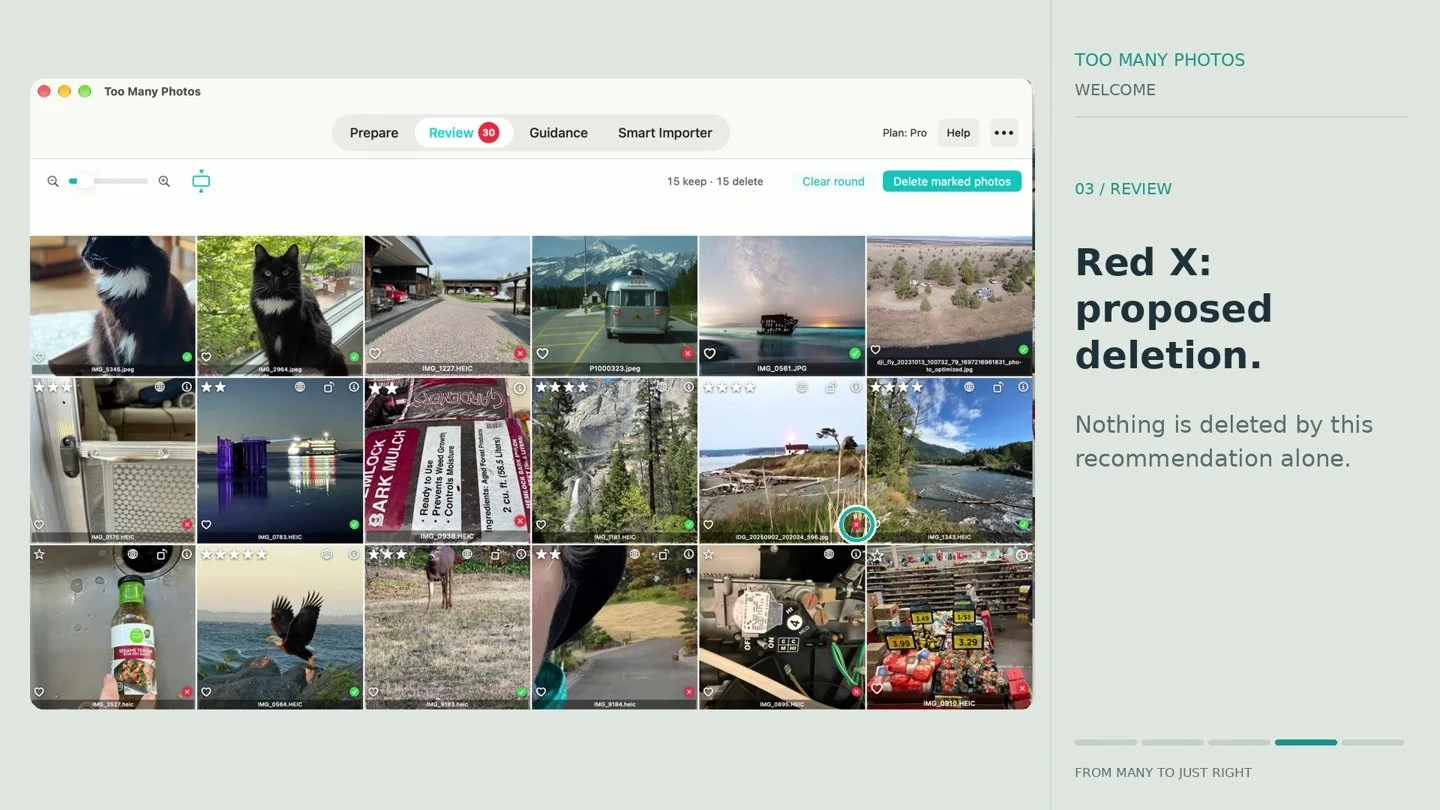
Look through the green Keep checkmarks and red Delete X marks. Open a photo for a closer look and use Info to read available comments. Change any suggestion you disagree with.
Keep/Delete marks control the proposed decisions. Favorite hearts and quality stars have their own separate roles.
5. Check the decisions and approve.
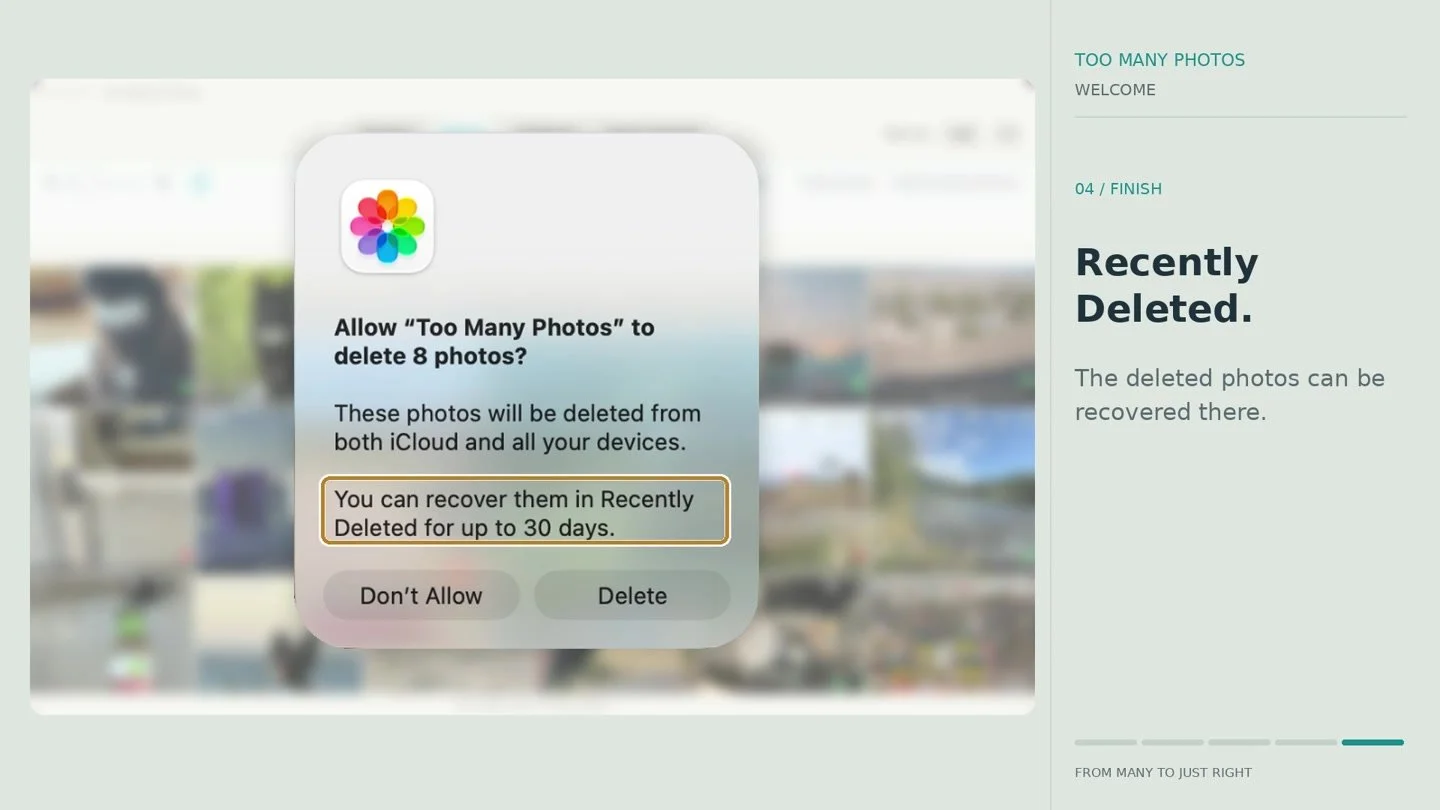
When ready, choose Delete marked photos and confirm Apple’s deletion request. A red X alone does not delete a photo. If nothing is marked Delete, use Done with Round.
Approved deletions remove eligible originals from your Apple Photos library. With iCloud Photos enabled, Apple syncs that change across your devices. Apple manages Recently Deleted and its recovery period.
What is a round?
A manageable group from the photos you chose, with the AI’s suggestions ready for you to check. Settings normally targets 50 photos and allows related photos to stay together. You can change round sizes for future preparation.
How does the AI know what I like?
Your written Guidance gives it priorities. Comments can explain how those priorities affected a recommendation. If the suggestions miss what matters, adjust your Guidance before preparing more photos and correct the decisions in Review.
The AI assists with the first pass; your knowledge of your memories completes it.
Where do my keepers go?
They stay in your existing Apple Photos library. Too Many Photos integrates directly with that library and gives you its own in-app Review workspace for the cleanup decisions.
Have photos in folders outside Apple Photos?
Pro’s Smart Importer brings external folders into Apple Photos with useful organization and metadata options. Importing and AI review are separate steps.
Actual app screens from the recent onboarding video. Tap or click an image to read it at full size.
Watch the quick walkthrough
Quick walkthrough
1 min 26 sec
See AI assistance, manageable rounds, and Apple Photos working together.